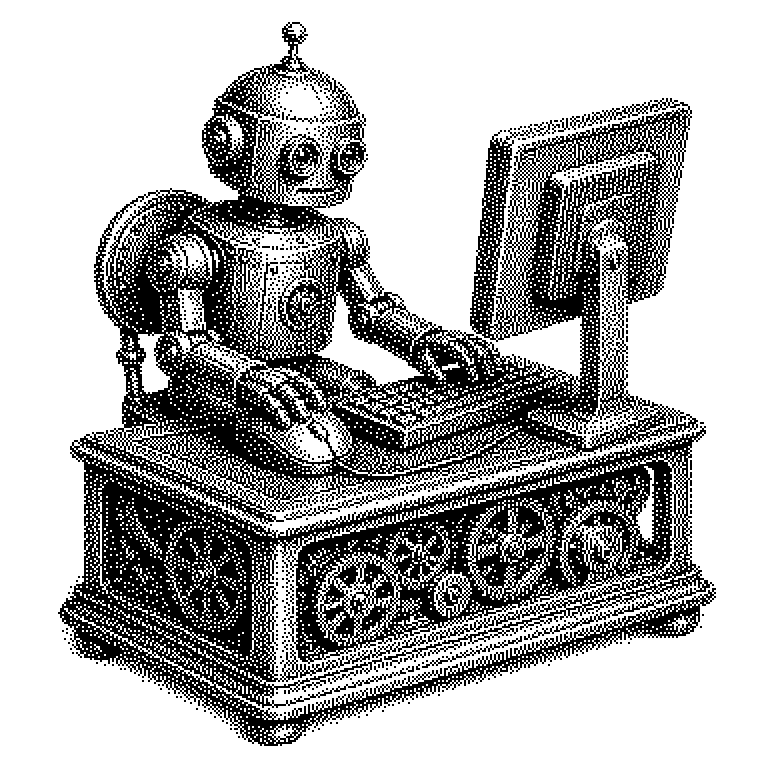
Screen Automation
Screen Automation refers to the use of software that controls a computer the way a human would with a mouse and keyboard — without needing to modify the code of the application being operated. It is used to run repetitive on-screen tasks fully automatically.
Screen Automation means: a program takes over control of the computer — it moves the mouse pointer, clicks on buttons, and types text, exactly as a human would. What’s special about it is that the application being operated doesn’t notice anything and doesn’t need to be changed at all. The automating software essentially looks at the screen and reacts to what it sees there. This allows tasks that repeat daily to be handled without any human involvement. It saves time and reduces errors caused by inattention.
Why Screen Automation is so widespread in enterprises
Many companies have software that has been in use for decades and has no modern interface through which other programs could address it directly. It can only be operated the way it always has been: by clicking and typing on the screen. Screen Automation closes exactly this gap. It works with any application, no matter how old or rigidly built.
On top of that there is economic pressure. Tasks like transferring data from a spreadsheet into an accounting program, or daily retrieving and filing reports, cost employees many hours per week. Screen Automation can handle these routines in minutes. According to estimates from market researchers such as Gartner, by 2025 more than 85 percent of large enterprises will have adopted some form of process automation — with Screen Automation often being the first and simplest tool used.
How a Screen Automation program “reads” the screen
There are two fundamental techniques. The older method searches for fixed image snippets: the program stores a small screenshot of a button and then looks for this pattern on the current screen every time it runs. If it finds it, it clicks there. This is reliable as long as the application’s design doesn’t change — but even an updated icon can throw the system off.
The more modern method uses so-called accessibility information. Many operating systems provide a structured description of the screen content for people with visual impairments — which button is located where, what text a field contains. Screen Automation programs can access this information and thereby find elements more reliably, without depending on an exact image. Newer approaches combine these methods with AI models that interpret the screen similarly to a human and can also understand unfamiliar layouts.
A typical workflow looks like this: the automation program starts, waits until a certain window appears, reads values there, switches to another application, enters the values, and saves the result. Between these steps it can check whether something has gone wrong — for example, whether an error message has appeared — and react accordingly.
Screen Automation in products and news
The best-known commercial environment for Screen Automation is the market for so-called RPA software (Robotic Process Automation, i.e. the automation of business processes by software “robots”). Vendors such as UiPath, Automation Anywhere, and Blue Prism have achieved billion-dollar valuations with this technology. Their products present Screen Automation graphically: you draw out a workflow without having to program it yourself.
In the field of AI agents — programs that independently carry out tasks on a computer — Screen Automation is currently moving strongly into the spotlight. Researchers at Google, Anthropic, and OpenAI are working to equip their language models with the ability to see a screen and react to it. Anthropic’s model Claude has been able, in a test version since 2024, to perform mouse movements and fill out forms. This field goes by the name “Computer Use” and is considered one of the next major steps toward truly autonomously acting AI systems.
Private individuals also encounter Screen Automation in everyday life, often without realizing it. Automated tests of apps and websites frequently run via Screen Automation: a script opens the browser, fills out forms, and checks whether the page responds correctly. And anyone working with simple tools like AutoHotkey or the built-in macro recorder in Microsoft Office is operating a simple form of it themselves.